Meal kit subscription services live or die on their first impression online — a cluttered, slow, or unconvincing website sends potential subscribers straight to a competitor. The Canvas HTML Template gives you a production-ready foundation to build a high-converting food subscription website without starting from scratch.
- A meal kit subscription website needs a clear hero, a visible subscription CTA, and a trust-building section — Canvas provides all the layout components to assemble these quickly.
- Canvas’s Bootstrap 5 grid and pre-built section components make it straightforward to build responsive meal plan cards, pricing tables, and ingredient showcase sections.
- Use –cnvs-themecolor to apply your brand’s food-focused colour palette consistently across all components without overriding individual selectors.
- Choosing between a single-page and multi-page structure depends on the complexity of your offering — simpler subscription tiers suit a focused one-page layout.
Planning Your Layout Structure Before You Write a Line of Code
Before touching any HTML, map out the customer journey. A visitor landing on a meal kit website typically needs to understand three things within the first few seconds: what the service delivers, how much it costs, and why they should trust you. Every layout decision should serve those three goals.
For most meal kit brands launching in 2025, a single-page layout is the right starting point. It keeps the subscriber funnel tight, reduces bounce opportunities between pages, and performs well for paid traffic campaigns. If your product has multiple meal plan tiers, a family range, or a corporate catering offering, a multi-page structure makes more sense. The post on one-page vs multi-page websites covers this decision in detail. In Canvas terms, this maps directly to either the singlepage section type or a fullpage_layout depending on your scope.
Building the Hero Section That Converts Visitors Immediately
Your hero is doing the heaviest lifting on the entire page. For a food subscription website, it must communicate appetite appeal and a clear call to action — typically “Start Your First Box” or “Choose Your Plan.” Canvas gives you full-width section components with overlay support, so you can place a high-quality food photograph as the background with a legible headline on top.
Here is a practical Canvas-compatible hero structure using Bootstrap 5 grid and Canvas section markup:
<section id="slider" class="slider-element min-vh-60 include-header" style="background: url('images/meal-hero.jpg') center/cover no-repeat;">
  <div class="slider-inner">
    <div class="vertical-middle">
      <div class="container">
        <div class="row justify-content-center text-center">
          <div class="col-xl-7 col-lg-9">
            <h2 class="display-3 fw-bold text-white ls-n-1 mb-3">Fresh Ingredients. Zero Effort.</h2>
            <p class="lead text-white op-08 mb-4">Chef-designed meal kits delivered to your door every week.</p>
            <a href="#plans" class="button button-large button-rounded m-0" style="background-color: var(--cnvs-themecolor);">See This Week's Menu</a>
          </div>
        </div>
      </div>
    </div>
  </div>
</section>
Keep the overlay semi-transparent rather than fully opaque. The food photograph should remain visible — it is doing persuasive work even beneath the text. Applying –cnvs-themecolor to the CTA button ensures your brand colour carries through without scattered inline colour values.
Designing Meal Plan Cards and Pricing Sections
Subscription tiers need to feel easy to compare. Canvas’s Bootstrap 5 grid lets you build a clean three-column card layout for plans like “Solo Chef,” “Couple’s Kitchen,” and “Family Feast.” Pair this with Canvas’s built-in pricing table components to show per-serving costs, weekly totals, and a highlighted recommended plan.
Here is a minimal meal plan card example using Bootstrap 5 columns inside a Canvas content section:
<section id="plans" class="section mb-0 py-6 bg-light">
  <div class="container">
    <div class="row justify-content-center text-center mb-5">
      <div class="col-lg-6">
        <h2 class="fw-bold">Choose Your Plan</h2>
        <p class="text-muted">All plans include free delivery and flexible pause options.</p>
      </div>
    </div>
    <div class="row g-4">
      <div class="col-md-4">
        <div class="card h-100 border-0 shadow-sm rounded-4 p-4 text-center">
          <h4 class="fw-bold">Solo Chef</h4>
          <p class="text-muted">2 meals per week for 1 person</p>
          <div class="display-5 fw-bold mb-3" style="color: var(--cnvs-themecolor);">$8.99 <small class="fs-6 text-muted fw-normal">/ serving</small></div>
          <a href="#signup" class="button button-rounded button-border w-100">Get Started</a>
        </div>
      </div>
      <div class="col-md-4">
        <div class="card h-100 border-0 shadow-sm rounded-4 p-4 text-center" style="border-top: 4px solid var(--cnvs-themecolor) !important;">
          <span class="badge mb-2" style="background-color: var(--cnvs-themecolor);">Most Popular</span>
          <h4 class="fw-bold">Couple's Kitchen</h4>
          <p class="text-muted">3 meals per week for 2 people</p>
          <div class="display-5 fw-bold mb-3" style="color: var(--cnvs-themecolor);">$7.49 <small class="fs-6 text-muted fw-normal">/ serving</small></div>
          <a href="#signup" class="button button-rounded w-100">Get Started</a>
        </div>
      </div>
      <div class="col-md-4">
        <div class="card h-100 border-0 shadow-sm rounded-4 p-4 text-center">
          <h4 class="fw-bold">Family Feast</h4>
          <p class="text-muted">4 meals per week for 4 people</p>
          <div class="display-5 fw-bold mb-3" style="color: var(--cnvs-themecolor);">$6.25 <small class="fs-6 text-muted fw-normal">/ serving</small></div>
          <a href="#signup" class="button button-rounded button-border w-100">Get Started</a>
        </div>
      </div>
    </div>
  </div>
</section>
For more advanced Canvas pricing table patterns that drive conversions, the post on Canvas pricing tables: design options that convert visitors walks through additional layout variations worth considering.
Using Food Photography and Whitespace to Build Appetite Appeal
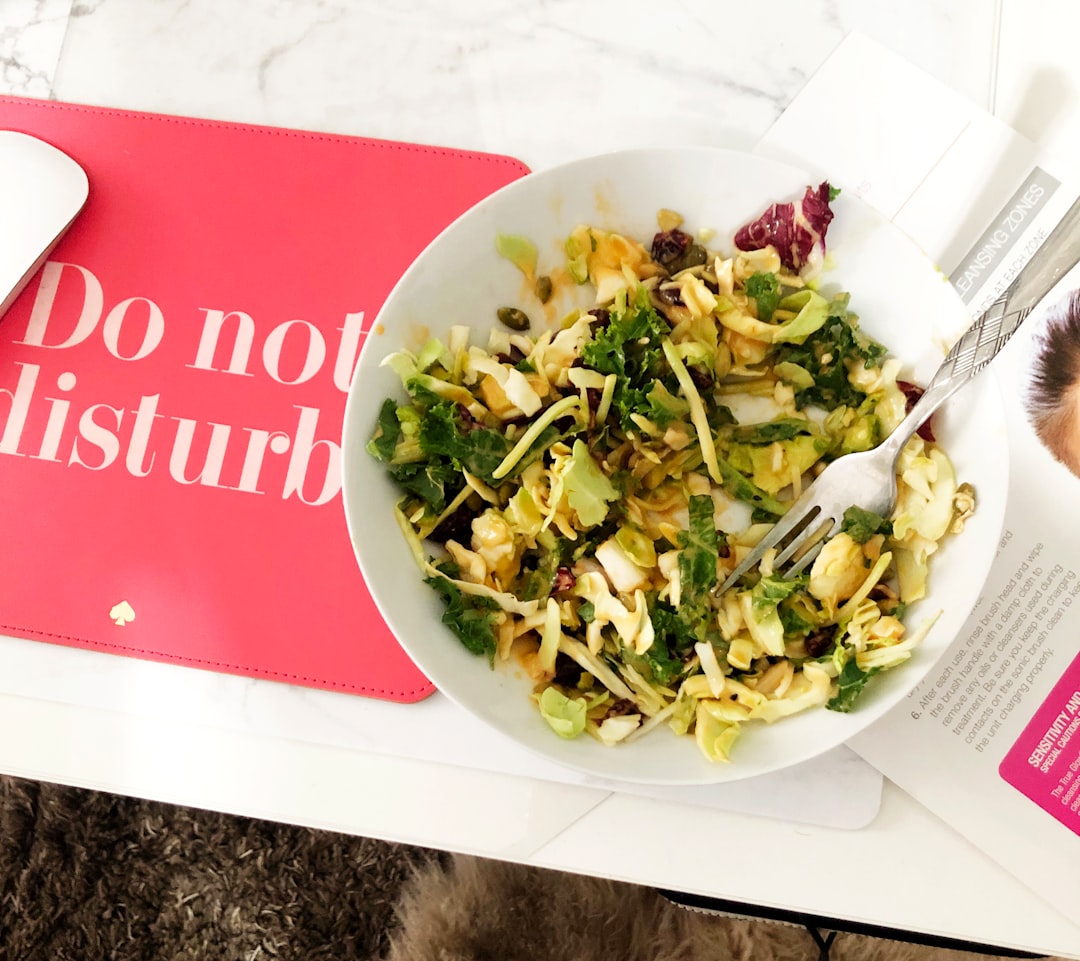
Food subscription websites depend on visual hunger — the design must make the food look irresistible. Resist the temptation to fill every section with text. Generous whitespace around ingredient photography signals quality and premium positioning, which directly supports higher average subscription values.
Canvas’s section padding utilities make this straightforward. Use py-6 or py-7 on content sections to create breathing room, and let a full-bleed image section separate your pricing area from the testimonials block. The post on whitespace in web design explains why restraint consistently outperforms density for premium brands.
For the ingredient showcase, a block_section with an alternating two-column layout — image left, text right, then text left, image right — works well and is a pattern Canvas supports natively through Bootstrap’s order utility classes.
Adding Trust Signals That Reduce Subscription Hesitation
Subscription hesitation is real: visitors worry about being locked in, about food quality, about cancellation. Your design needs to proactively answer those objections. Canvas gives you icon feature blocks, testimonials sliders, and logo strips — all of which are useful here.
A four-column icon block beneath the hero covering “Free Delivery,” “Skip Any Week,” “Fresh Guaranteed,” and “Cancel Anytime” removes the four most common objections before visitors even reach the pricing section. Below that, a testimonial section with real subscriber photos builds credibility. For food-specific design decisions around trust, the post on food tech website design trends for 2026 covers current patterns in detail.
Apply the following CSS in your style.css to keep your brand colour consistent across icon elements:
:root {
  --cnvs-themecolor: #e8563a;
  --cnvs-themecolor-rgb: 232, 86, 58;
}

.feature-icon i {
  color: var(--cnvs-themecolor);
}

.button:not(.button-border) {
  background-color: var(--cnvs-themecolor);
  border-color: var(--cnvs-themecolor);
}
Speeding Up Production with Canvas Builder
Assembling all these sections manually — hero, features, meal cards, testimonials, FAQ, footer — is time-consuming even with Canvas’s component library. Canvas Builder accelerates this by generating complete, Canvas-compatible HTML layouts from a structured prompt. You describe the page type, section order, colour variables, and content requirements, and it outputs production-ready markup that uses the correct Canvas classes, Bootstrap 5 grid, and CSS variables rather than generic boilerplate.
For a meal kit project, that means you can generate the full single-page layout in one pass, then refine individual sections rather than building from an empty file. When you load the output into your Canvas project, the JS files — js/plugins.min.js and js/functions.bundle.js — handle animations, sticky headers, and smooth scroll without any additional configuration.
Frequently Asked Questions
Should a meal kit website use a single-page or multi-page layout?
For a straightforward subscription offering with two to four plan tiers, a single-page layout keeps the funnel focused and reduces drop-off points. If you have separate meal ranges, a blog, or a corporate offering, a multi-page structure built with Canvas’s fullpagelayout approach gives you the space to present each without crowding.
Which Canvas CSS variable controls the brand colour for buttons and icons?
The correct variable is –cnvs-themecolor. Set it once in your style.css root block and it cascades through buttons, icon colours, and any element you reference with var(–cnvs-themecolor). Do not use –bs-primary or –color-primary, which are not Canvas variables.
How do I make the meal plan cards responsive on mobile?
Use Bootstrap 5’s column classes — col-md-4 for the three-column desktop layout automatically collapses to a stacked single column on smaller screens. Canvas bundles Bootstrap 5 natively, so there is no need to load the Bootstrap CDN separately.
What food photography size works best for Canvas hero sections?
A minimum of 1920 x 900 pixels at 72 DPI works well for full-width hero backgrounds in Canvas. Optimise the file to under 200KB using WebP format to maintain fast load times, which directly affects both user experience and search ranking.
Can Canvas Builder generate a full meal kit page layout automatically?
Yes. Canvas Builder accepts structured prompts that describe your section order, colour variables, plan names, and content blocks, and outputs complete Canvas-compatible HTML. This is especially useful for agency workflows where multiple similar subscription landing pages need to be produced quickly across different food brands.
If you’re working with the Canvas HTML Template and want to generate production-ready layouts faster, try Canvas Builder free and see how much time you save on every project.