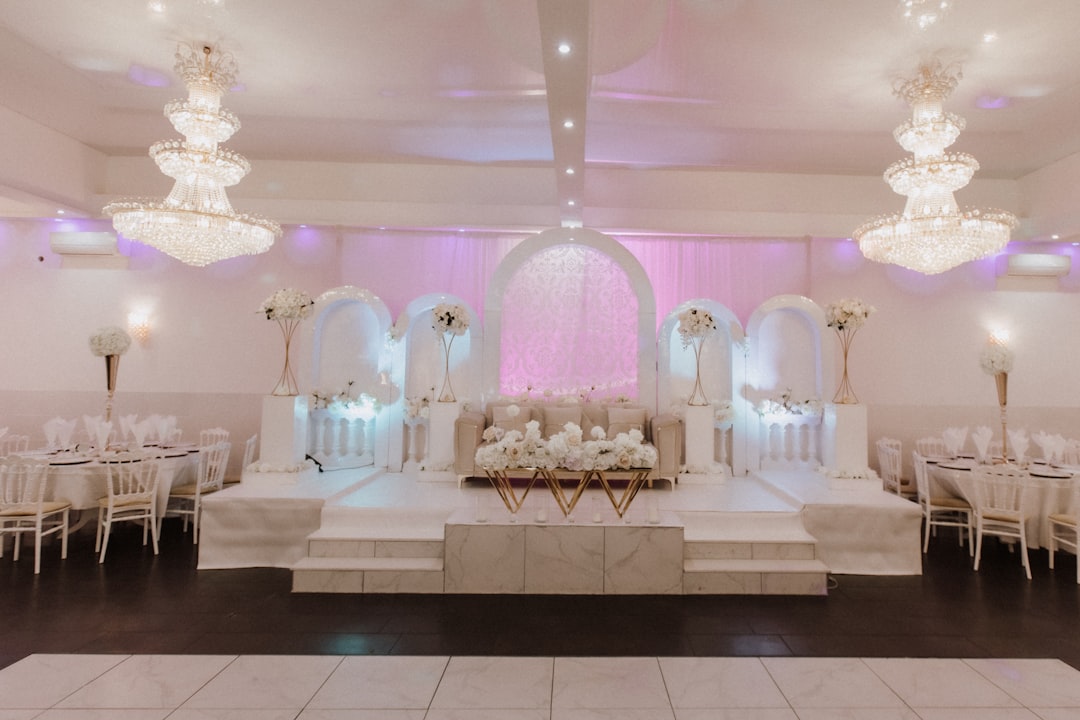
A wedding venue’s website is often the first — and most decisive — touchpoint for couples comparing their shortlist of venues, which means a poorly structured site doesn’t just lose a lead; it hands that booking directly to a competitor. Getting the design right requires more than beautiful photography: it demands a clear information architecture, persuasive calls to action, and a layout that performs just as well on mobile as it does on a large display.
Why Most Wedding Venue Websites Fail to Convert
The most common failure is prioritising aesthetics over function. A venue site might have stunning drone footage and elegant serif fonts, yet still convert poorly because couples cannot find basic information: how many guests the venue holds, whether catering is in-house or third-party, and what the enquiry process looks like. Conversion-focused design means anticipating every question a couple has and answering it before they have to ask.
Secondary failures include slow image loading (uncompressed gallery photos are the usual culprit), no mobile-optimised navigation, and a contact form buried three scrolls below the fold. Each of these issues compounds the other. If you are building a venue site for a client, auditing against these failure points before launch will save significant revision time.
Essential Sections Every Wedding Venue Website Must Include
Think of your page structure as a conversation that mirrors how couples actually make decisions. They start with emotion, then move to logistics, then seek social proof, and finally commit to an enquiry. Your section order should reflect that journey.
- Hero Section: Full-width image or video of the venue at its best — ceremony space, reception hall, or outdoor grounds. Include a single headline and one CTA button linking to the enquiry form.
- Venue Overview: A brief narrative (two to three paragraphs) covering the venue’s character, location, and unique selling point. Pair it with a secondary image or short feature list.
- Spaces and Capacity: A grid or tab layout showing each distinct space (ceremony room, cocktail terrace, bridal suite) with headshots, capacity figures, and a one-line description.
- Packages and Pricing: Even if full pricing is “available on request”, a packages section showing what is included builds confidence. Use a three-column Bootstrap card layout for easy comparison.
- Photo Gallery: A filterable or masonry gallery. Keep images compressed to WebP at no wider than 1,400px to maintain page speed.
- Testimonials: Rotating quotes from real couples with a name, wedding date, and if possible a small portrait photo.
- FAQ: Answer the ten questions your venue receives most often by email — this alone reduces pre-enquiry back-and-forth and builds trust.
- Contact and Enquiry Form: Name, email, preferred date, estimated guest count, and a message field. Keep it simple. Fewer fields equal higher submission rates.
Building the Layout with Canvas and Bootstrap 5
Canvas is built on Bootstrap 5, which means you have access to a full 12-column grid, flexbox utilities, and a component library out of the box. For a venue packages section, a three-column card layout is the most effective pattern. Here is a working snippet you can drop directly into a Canvas page section:
<section class="py-6">
  <div class="container">
    <div class="row justify-content-center mb-5">
      <div class="col-lg-7 text-center">
        <h2 class="display-5 fw-bold">Our Wedding Packages</h2>
        <p class="lead text-muted">Choose the package that suits your vision and guest list.</p>
      </div>
    </div>
    <div class="row g-4">
      <div class="col-md-4">
        <div class="card h-100 border-0 shadow-sm">
          <div class="card-body p-4">
            <h5 class="card-title fw-semibold">Intimate</h5>
            <p class="text-muted">Up to 50 guests</p>
            <ul class="list-unstyled mt-3">
              <li class="mb-2">Garden ceremony space</li>
              <li class="mb-2">3-course dinner</li>
              <li class="mb-2">Bridal suite access</li>
            </ul>
          </div>
        </div>
      </div>
      <div class="col-md-4">
        <div class="card h-100 border-0 shadow-sm border-top border-3" style="border-color: var(--cnvs-themecolor) !important;">
          <div class="card-body p-4">
            <h5 class="card-title fw-semibold">Classic</h5>
            <p class="text-muted">Up to 150 guests</p>
            <ul class="list-unstyled mt-3">
              <li class="mb-2">Grand hall & garden</li>
              <li class="mb-2">5-course dinner</li>
              <li class="mb-2">Evening entertainment</li>
            </ul>
          </div>
        </div>
      </div>
      <div class="col-md-4">
        <div class="card h-100 border-0 shadow-sm">
          <div class="card-body p-4">
            <h5 class="card-title fw-semibold">Grand</h5>
            <p class="text-muted">Up to 300 guests</p>
            <ul class="list-unstyled mt-3">
              <li class="mb-2">Full venue exclusive hire</li>
              <li class="mb-2">Bespoke catering menu</li>
              <li class="mb-2">On-site coordinator</li>
            </ul>
          </div>
        </div>
      </div>
    </div>
  </div>
</section>
Notice the use of var(--cnvs-themecolor) to apply the venue’s brand colour as a top border accent on the featured card — this is the correct Canvas variable, not --bs-primary. For more detail on aligning and spacing elements within these grid layouts, the guide on Bootstrap 5 Flexbox alignment and spacing covers the utilities you will use most frequently.
Typography and Colour Choices for Wedding Venues
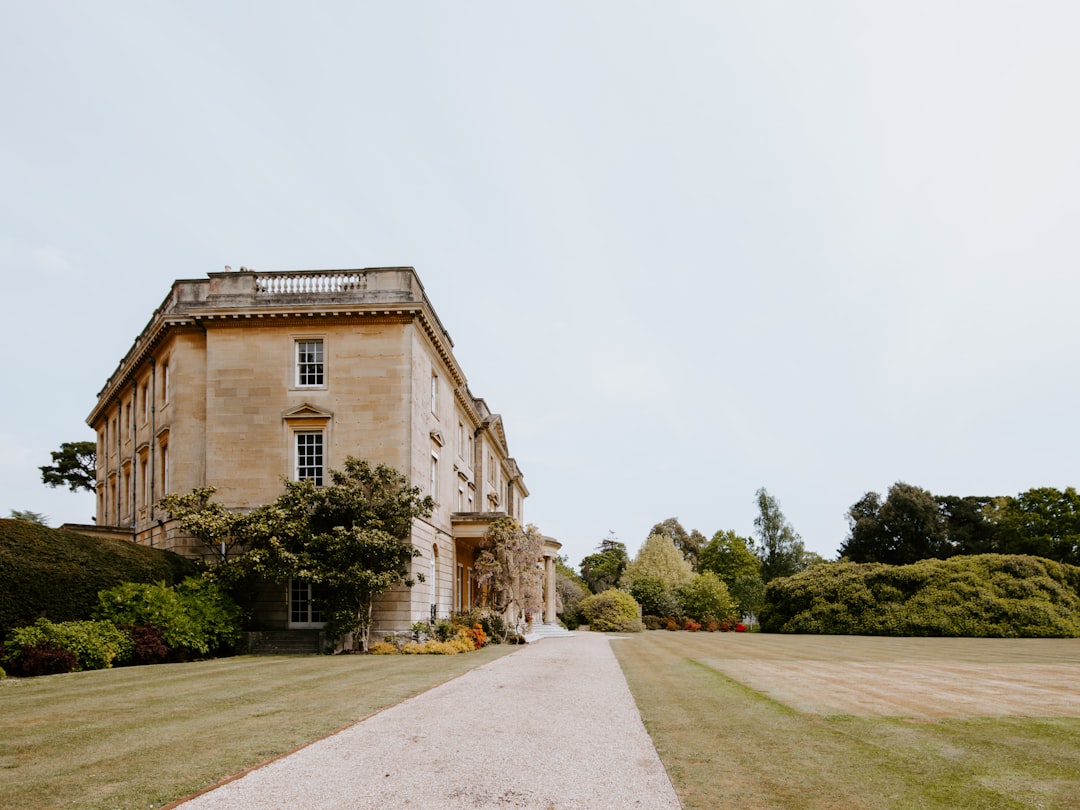
Wedding venues typically fall into one of three visual tones: rustic-romantic (warm neutrals, serif fonts), modern-luxury (deep charcoals, gold accents, clean sans-serif), or garden-fresh (soft greens, dusty rose, light airy typography). Your font and colour choices must reinforce whichever tone the venue has already established in its branding.
In Canvas, set fonts via the --cnvs-primary-font and --cnvs-secondary-font CSS variables in your stylesheet. For a luxury venue pairing a display serif heading font with a neutral body font:
:root {
  --cnvs-primary-font: 'Cormorant Garamond', Georgia, serif;
  --cnvs-secondary-font: 'Inter', sans-serif;
  --cnvs-themecolor: #b08d6a;
  --cnvs-themecolor-rgb: 176, 141, 106;
}
Import your chosen Google Fonts in the <head> before style.css. Never load Bootstrap separately — Canvas bundles Bootstrap 5 already, and a duplicate load will cause styling conflicts.
Social Sharing, Open Graph, and Local SEO
Couples routinely share venue websites with family and partners via social media links and messaging apps. If your Open Graph tags are missing or incorrect, those shared links will render as bare URLs with no image preview — a missed opportunity every time. Implement complete Open Graph meta tags in the <head> of every key page. For a comprehensive walkthrough of how to structure these correctly, see the Open Graph tags complete guide.
For local SEO, every wedding venue website in 2025 should include structured data markup (schema.org EventVenue type), a Google Maps embed, consistent NAP (Name, Address, Phone) data in the footer, and a page title pattern that includes the venue name and location — for example: “Meadowbrook Manor Wedding Venue | Oxfordshire”.
Accelerating the Build Process with an AI Wedding Venue Website Builder
Building a venue site manually — even with Canvas’s component library — still involves significant layout assembly, placeholder copy decisions, and repeated tweaking of grid breakpoints. An AI-powered wedding venue website builder approach changes the workflow entirely: you describe the site’s tone, sections, and content structure in a prompt, and receive a complete Canvas-compatible HTML layout ready to customise.
This is particularly valuable when working on client projects where initial concepts need to be presented quickly. Rather than spending several hours assembling a first draft, you can generate multiple layout variations, compare them with the client, and refine the chosen direction. The post on speeding up client approvals with AI-generated design concepts explores this workflow in more detail. If you are curious about what other venue-adjacent niche sites can be built with the same approach, 12 niche website ideas you can build with Canvas HTML is worth a read.
The key advantage is consistency: AI-generated Canvas layouts use the correct file structure (style.css, css/font-icons.css, js/plugins.min.js, js/functions.bundle.js), the correct Canvas CSS variables, and Bootstrap 5 classes — so the output is production-ready rather than requiring a structural overhaul before it can be used.
Frequently Asked Questions
What pages should a wedding venue website have?
At minimum: a home page, a venue spaces page, a packages and pricing page, a gallery, a testimonials or reviews page, an FAQ page, and a contact/enquiry page. Larger venues with multiple sites or accommodation on-site may add further section-specific pages.
How do I make a wedding venue website mobile-friendly?
Use Bootstrap 5’s responsive grid (which Canvas includes by default), ensure touch-friendly tap targets for all buttons and form fields, compress all gallery images to WebP format, and test on real devices rather than only browser emulators. Avoid fixed-width elements and always use percentage or viewport-relative widths for hero sections.
Should a wedding venue website show prices?
Transparency on pricing — even if only indicative package ranges — reduces the friction couples feel before making an enquiry. Venues that display “prices from £X” consistently report higher enquiry quality because couples have pre-qualified themselves before contacting. Full bespoke pricing can still be confirmed after enquiry.
What is the best colour scheme for a wedding venue website?
There is no single best scheme — it should reflect the venue’s existing brand and physical aesthetic. Luxury estates typically use deep navy, champagne gold, or charcoal with white space. Rustic barns suit warm terracotta, sage green, and cream. Garden venues work well with dusty rose, sage, and soft white. Always derive the palette from the venue’s strongest photography.
Can I use Canvas HTML Template to build a wedding venue website?
Yes. Canvas’s multi-purpose section library, Bootstrap 5 grid, and full CSS variable system make it an excellent base for venue websites. You can customise fonts via --cnvs-primary-font, brand colour via --cnvs-themecolor, and header behaviour via --cnvs-header-bg and --cnvs-header-sticky-bg — all without modifying core template files.
If you’re working with the Canvas HTML Template and want to generate production-ready layouts faster, try Canvas Builder free and see how much time you save on every project.