
Most micro-SaaS products solve a narrow problem exceptionally well — but their landing pages often fail to communicate that clarity, costing real trial signups before a single line of product code ever runs. Building your landing page with Bootstrap 5 and the Canvas HTML Template gives you a production-quality foundation without the overhead of a full framework or a bloated page builder.
- A micro-SaaS landing page needs five core sections: hero, problem/solution, features, social proof, and a single CTA — Canvas shortcodes speed up building every one of them.
- Bootstrap 5’s grid and utility classes handle responsive layout without writing custom media queries, and Canvas bundles Bootstrap 5 natively so you never load it separately.
- Canvas CSS variables (–cnvs-themecolor, –cnvs-primary-font) let you apply brand colours and typography globally in minutes.
- Conversion-focused structure matters as much as visual design — leading with the exact outcome your product delivers is the single highest-impact change you can make.
Why Canvas and Bootstrap 5 Are a Strong Fit for Micro-SaaS
Micro-SaaS founders typically work with limited time and budget. The goal is to validate fast, look credible, and convert visitors into trial users. Canvas is built on Bootstrap 5, which means the grid system, flexbox utilities, and responsive breakpoints are all available immediately — no CDN link needed, no version conflicts. You get a polished UI component library layered on top of a mature CSS framework.
Canvas also ships with pre-built section types (including block_section components) that map directly to the sections a SaaS landing page needs: hero blocks, pricing tables, testimonial carousels, and feature grids. Rather than building from scratch, you’re selecting and customising. For a deeper look at how Canvas’s shortcode system accelerates this kind of work, the post on Using Canvas Shortcodes to Build Feature-Rich Pages Faster covers the mechanics in detail.
The practical advantage in 2025: you can ship a conversion-optimised page in a single focused session rather than across multiple days of layout troubleshooting.
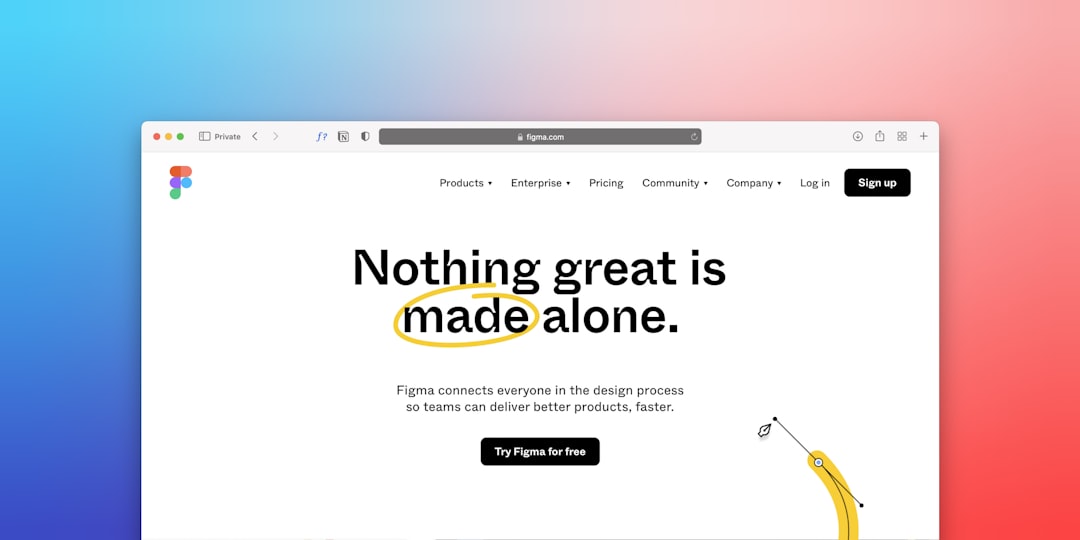
Planning the Section Structure Before You Touch Code
Before opening any file, map your five mandatory sections. Every micro-SaaS landing page that converts follows a consistent information hierarchy:
- Hero — one sentence outcome statement, one sub-headline clarifying who it’s for, and a single primary CTA button
- Problem/Solution — acknowledge the pain, position your product as the specific fix
- Features — three to five capabilities shown as icon + headline + short description
- Social Proof — two or three testimonials, or a simple logo bar if you have recognisable customers
- Pricing / CTA — one plan or a minimal two-tier table, closing with the trial signup
This structure is deliberate. Visitors arriving from a paid ad or a Product Hunt listing are scanning quickly. Every section earns the scroll to the next one. For more on conversion-led page architecture, the SaaS Landing Page Design: The Blueprint That Converts Trials to Customers post goes deep on copy and hierarchy decisions.
Building the Hero Section with Bootstrap 5 Grid
The hero section uses a two-column Bootstrap grid: left column for the headline and CTA, right column for a product screenshot or illustration. Canvas’s section wrapper and spacing utilities handle the vertical rhythm without custom CSS.
<section id="hero" class="py-6 py-md-7">
  <div class="container">
    <div class="row align-items-center g-5">
      <div class="col-lg-6">
        <span class="badge bg-color-themecolor text-white text-uppercase fw-semibold ls-1 mb-3 d-inline-block">Now in Beta</span>
        <h1 class="display-4 fw-bold lh-sm mb-3">
          Stop chasing invoice approvals. Get paid on time, automatically.
        </h1>
        <p class="lead text-muted mb-4">
          InvoicePilot syncs with your accounting tool, sends smart payment nudges, and flags at-risk invoices before they go overdue — so you spend less time chasing and more time closing.
        </p>
        <a href="#pricing" class="button button-xlarge button-rounded button-fill"
           style="background-color: var(--cnvs-themecolor); border-color: var(--cnvs-themecolor);">
          Start Free Trial
        </a>
        <p class="small text-muted mt-2">No credit card required. 14-day free trial.</p>
      </div>
      <div class="col-lg-6">
        <img src="images/product-screenshot.png" alt="InvoicePilot dashboard" class="img-fluid rounded-4 shadow-lg">
      </div>
    </div>
  </div>
</section>
Notice the CTA button uses var(–cnvs-themecolor) for background and border — this ensures it inherits whatever brand colour you have set globally, rather than hardcoding a hex value that breaks when you update your palette. The button-rounded and button-fill classes are Canvas-native button modifiers that apply the correct padding and border-radius without extra CSS.
Feature Grid and Canvas Icon Integration
A three-column feature grid is the most common micro-SaaS layout pattern. Bootstrap’s col-md-4 handles the responsive collapse automatically. Canvas ships with an icon font set loaded via css/font-icons.css — reference these icons with the i- prefix classes rather than importing a separate icon library.
<section id="features" class="py-6 bg-color-light">
  <div class="container">
    <div class="row text-center mb-5">
      <div class="col-md-8 offset-md-2">
        <h2 class="fw-bold">Everything you need. Nothing you don't.</h2>
        <p class="text-muted">Built for solo founders and small finance teams who bill monthly retainers or project milestones.</p>
      </div>
    </div>
    <div class="row g-4">
      <div class="col-md-4">
        <div class="feature-box p-4 rounded-3 bg-white h-100">
          <i class="i-plain i-medium bi-clock-history color-themecolor mb-3 d-block"></i>
          <h5 class="fw-semibold">Automated Follow-Ups</h5>
          <p class="text-muted mb-0">Send personalised payment reminders on a schedule you control — no manual chasing required.</p>
        </div>
      </div>
      <div class="col-md-4">
        <div class="feature-box p-4 rounded-3 bg-white h-100">
          <i class="i-plain i-medium bi-graph-up-arrow color-themecolor mb-3 d-block"></i>
          <h5 class="fw-semibold">At-Risk Invoice Alerts</h5>
          <p class="text-muted mb-0">Our model flags invoices likely to go overdue based on client payment history, giving you time to act.</p>
        </div>
      </div>
      <div class="col-md-4">
        <div class="feature-box p-4 rounded-3 bg-white h-100">
          <i class="i-plain i-medium bi-plug color-themecolor mb-3 d-block"></i>
          <h5 class="fw-semibold">One-Click Integrations</h5>
          <p class="text-muted mb-0">Connects to QuickBooks, Xero, and FreshBooks in under two minutes — no developer needed.</p>
        </div>
      </div>
    </div>
  </div>
</section>
The h-100 utility ensures all three cards stretch to equal height regardless of content length — a small detail that significantly improves visual consistency across screen sizes. If you want to explore Bootstrap 5’s alignment and spacing utilities in more depth, Bootstrap 5 Utility Classes: Every Designer Should Know These is a solid reference.
Applying Your Brand Colour Globally with Canvas CSS Variables
One of the most time-saving aspects of Canvas is its CSS variable system. You define your brand colour once, and every Canvas component that references –cnvs-themecolor inherits it automatically — buttons, icon colours, active nav states, and accent lines all update in a single change.
:root {
  --cnvs-themecolor: #5B4CF5;
  --cnvs-themecolor-rgb: 91, 76, 245;
  --cnvs-primary-font: 'Inter', sans-serif;
  --cnvs-secondary-font: 'Inter', sans-serif;
  --cnvs-logo-height: 36px;
  --cnvs-logo-height-sticky: 28px;
  --cnvs-header-bg: #ffffff;
  --cnvs-header-sticky-bg: rgba(255, 255, 255, 0.97);
  --cnvs-primary-menu-color: #1a1a2e;
  --cnvs-primary-menu-hover-color: #5B4CF5;
}
Place this block in a custom.css file loaded after style.css in your document head. The –cnvs-themecolor-rgb value is required separately because Canvas uses it in rgba() calculations for backgrounds and shadows — if you only update the hex variable, some tinted elements will not update correctly. For a complete walkthrough of customising Canvas at this level, the HTML Template Customisation: The Definitive Guide for Designers covers every layer of the override system.
Correct File Setup and JS Loading Order
A common mistake when adapting Canvas for a new project is loading Bootstrap from a CDN alongside Canvas’s bundled version, which causes JavaScript conflicts. Canvas includes Bootstrap 5 — you do not add it separately. Your script loading order at the bottom of body must follow this pattern:
<!-- Canvas JS — load in this order only -->
<script src="js/plugins.min.js"></script>
<script src="js/functions.bundle.js"></script>
Your CSS references in head follow an equally strict order:
<link rel="stylesheet" href="style.css">
<link rel="stylesheet" href="css/font-icons.css">
<link rel="stylesheet" href="css/custom.css">
The custom.css file must always load last so your variable overrides and component tweaks take precedence over Canvas defaults. This setup keeps your micro-SaaS page lightweight — typically under 200 KB of CSS before images — which directly supports Core Web Vitals scores that affect paid acquisition costs in 2025 and beyond.
If you want to accelerate the entire layout generation process — producing the hero, feature grid, and pricing sections with correct Canvas markup — Canvas Builder lets you describe your page sections and outputs production-ready Canvas HTML you can drop directly into your project.
Frequently Asked Questions
Do I need to know Bootstrap 5 deeply to build a micro-SaaS landing page with Canvas?
A working knowledge of Bootstrap’s grid (rows, columns, breakpoints) is enough to get started. Canvas layers its own component classes on top, so many layout decisions are handled by Canvas shortcode classes like button-rounded or feature-box. You rarely need to write custom media queries.
Can I use a Canvas blocksection as a standalone landing page without a full site?
Yes. A blocksection in Canvas is a self-contained HTML file with its own header reference and section markup. For a micro-SaaS validation page you could use a single-page layout type instead, which gives you the full header, hero, sections, and footer in one file — ideal for a product launch or waitlist page.
How do I change the primary brand colour across the entire Canvas page?
Set –cnvs-themecolor and –cnvs-themecolor-rgb in your :root block inside a custom CSS file loaded after style.css. Every Canvas button, icon accent, and active state reads from these variables, so a single change propagates globally without hunting through component-level CSS.
Should I add Bootstrap from a CDN in addition to Canvas’s bundled files?
No — this is a critical mistake. Canvas bundles Bootstrap 5 inside js/plugins.min.js. Loading Bootstrap separately from a CDN creates duplicate instances that break Canvas’s JavaScript components, including sticky headers, carousels, and modal triggers.
What is the minimum number of sections a micro-SaaS landing page needs to convert visitors?
Five focused sections consistently outperform longer pages for micro-SaaS products: a clear hero with one CTA, a problem/solution block, a three-feature grid, two or three testimonials, and a pricing or trial CTA section. Adding more sections without a clear conversion reason typically increases bounce rate rather than improving it.
If you’re working with the Canvas HTML Template and want to generate production-ready layouts faster, try Canvas Builder free and see how much time you save on every project.